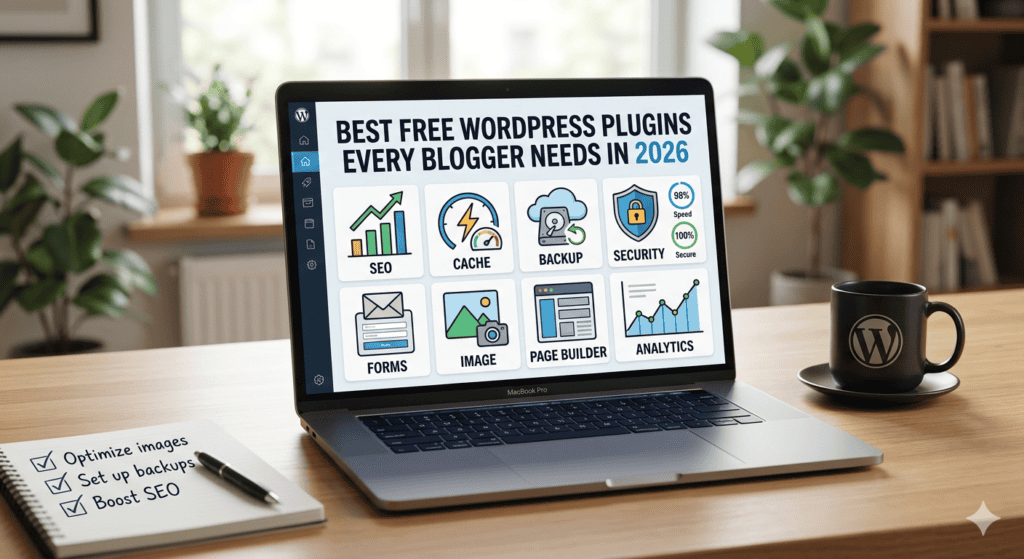

When I launched my first WordPress blog, I made the same mistake that almost every beginner makes—I installed way too many plugins.
I remember thinking, “If one plugin is useful, twenty must be even better.”
Within a few weeks, my website became painfully slow. Pages took forever to load, the WordPress dashboard felt sluggish, and one plugin update even broke my homepage completely. I spent more time fixing plugin conflicts than actually writing articles.
That experience taught me an important lesson: the best WordPress website isn’t the one with the most plugins—it’s the one with the right plugins.
Over the past few years, I’ve built several WordPress websites, tested dozens of free plugins, and removed many that promised amazing features but delivered unnecessary complexity. The plugins in this guide are the ones I genuinely recommend because they’ve consistently made blogging easier without slowing down my sites.
Whether you’re starting your first blog or looking to improve an existing one, these free WordPress plugins deserve a place on your website in 2026.
Why Choosing the Right Plugins Matters
Plugins are one of WordPress’s biggest strengths.
They allow you to add powerful features without writing a single line of code.
Need SEO?
There’s a plugin.
Want contact forms?
There’s a plugin.
Need image optimization?
There’s a plugin for that too.
The problem isn’t finding plugins.
The challenge is choosing plugins that are reliable, regularly updated, lightweight, and genuinely useful.
Installing too many plugins can lead to:
- Slower website speed
- Security risks
- Plugin conflicts
- Frequent maintenance issues
- Poor user experience
Quality always beats quantity.
1. Rank Math SEO – Best Free SEO Plugin
I’ve used multiple SEO plugins over the years, and Rank Math has become my favorite free option.
When I first switched to it, I expected only basic SEO settings.
Instead, I found features that previously required premium plugins.
What it helps with
- SEO titles and meta descriptions
- XML sitemaps
- Schema markup
- Keyword optimization
- Internal link suggestions
- Redirect management
The setup wizard is beginner-friendly, making it easy even if you’ve never optimized a website before.
Best for
Bloggers who want solid SEO without paying for premium tools.
2. LiteSpeed Cache (or WP Super Cache)
Website speed affects everything.
Readers leave slow websites.
Search engines also consider loading speed when ranking pages.
After installing a caching plugin on one of my blogs, page loading times improved noticeably.
Features
- Page caching
- Browser caching
- CSS and JavaScript optimization
- Image optimization
- Lazy loading
If your hosting supports LiteSpeed servers, LiteSpeed Cache is an excellent choice.
Otherwise, WP Super Cache is a reliable alternative.
3. UpdraftPlus – Backup Plugin Every Blogger Needs
One update.
That’s all it takes to break a website.
I learned this lesson after installing an incompatible theme update.
Thankfully, I had a backup.
Without it, I would have lost weeks of work.
UpdraftPlus automatically creates backups and allows easy restoration.
It can back up
- Posts
- Pages
- Themes
- Plugins
- Media files
- Database
A backup plugin isn’t exciting—but it’s one you’ll be grateful to have when something goes wrong.
4. WPForms Lite – Simple Contact Forms
Every blog should have a contact page.
Instead of publishing your email address everywhere, a contact form keeps communication organized while reducing spam.
WPForms Lite makes creating forms incredibly simple.
You can build:
- Contact forms
- Feedback forms
- Newsletter signup forms
- Basic surveys
The drag-and-drop builder means you don’t need coding experience.
5. Wordfence Security – Protect Your Website
Security wasn’t something I thought much about until I noticed repeated login attempts from unknown IP addresses.
That’s when I installed Wordfence.
It immediately started blocking suspicious activity.
Free features include:
- Malware scanning
- Login protection
- Firewall
- Security alerts
- Live traffic monitoring
Even small blogs become targets for automated attacks, so security shouldn’t be ignored.
6. Smush – Optimize Images Automatically
Large images can slow a website dramatically.
Before discovering image optimization plugins, I uploaded photos directly from my camera.
Some were over 5 MB each.
Smush automatically compresses images without making them look noticeably worse.
Benefits include:
- Faster loading
- Better SEO
- Lower bandwidth usage
- Improved mobile experience
It’s one of those plugins you install once and rarely think about again.
7. Elementor (Free Version)
If you’re not comfortable editing code, Elementor makes page design much easier.
I originally installed it just to improve my homepage.
Soon I was using it for:
- Landing pages
- About pages
- Contact pages
- Blog layouts
The free version includes enough features for most beginner bloggers.
8. Broken Link Checker
Nothing looks less professional than readers clicking links that no longer work.
This plugin regularly scans your website and identifies:
- Broken internal links
- Missing external pages
- Image errors
- Redirect issues
Fixing broken links also improves user experience and SEO.
9. Site Kit by Google
Instead of opening multiple dashboards, Site Kit brings important website data into WordPress.
You can connect:
- Google Analytics
- Search Console
- AdSense
- PageSpeed Insights
This became my daily dashboard because I could quickly see:
- Website traffic
- Search performance
- Popular articles
- Technical issues
Everything in one place.
10. Antispam Bee
Comment spam becomes annoying surprisingly fast.
Instead of manually deleting fake comments every day, Antispam Bee quietly filters them out.
Unlike some alternatives, it works well without requiring complicated setup.
It’s lightweight and ideal for personal blogs.
My Current Plugin Setup
After years of experimenting, my own blog uses surprisingly few plugins.
Here’s my typical setup:
- Rank Math SEO
- LiteSpeed Cache
- UpdraftPlus
- Wordfence
- WPForms Lite
- Smush
- Site Kit
- Elementor
- Antispam Bee
That’s usually enough for a fast, secure, and SEO-friendly website.
Plugins I Removed (And Why)
Not every plugin deserves to stay installed.
Some I removed because they:
- Slowed down my website
- Duplicated existing features
- Had poor support
- Were rarely updated
- Required expensive upgrades for basic functions
One mistake beginners often make is installing three plugins that perform the same job.
For example:
- Two SEO plugins
- Two caching plugins
- Multiple security plugins
This often causes conflicts rather than improvements.
Tips for Managing WordPress Plugins
Here are a few habits that have saved me countless hours.
Only install what you actually need
If a feature isn’t important today, don’t install a plugin “just in case.”
Keep plugins updated
Updates usually include:
- Security fixes
- Bug fixes
- Performance improvements
Ignoring updates can leave your website vulnerable.
Delete inactive plugins
Simply deactivating plugins isn’t enough.
Unused plugins can still become security risks if left installed.
Read reviews before installing
I always check:
- Number of active installations
- Recent updates
- User ratings
- Support responses
It only takes a minute and can prevent future headaches.
Test major changes
Whenever possible, test new plugins on a staging site before installing them on your live website.
This reduces the risk of breaking your blog.
Common Mistakes New Bloggers Make
Looking back, I made nearly all of these.
Installing dozens of plugins
More isn’t always better.
Ignoring backups
The day something breaks is the day you’ll wish you had one.
Forgetting performance
Every plugin adds some overhead.
Choose lightweight options whenever possible.
Using outdated plugins
If a plugin hasn’t been updated in years, it’s often better to find a modern alternative.
Final Thoughts
One of the biggest advantages of WordPress is its enormous plugin ecosystem.
But after managing multiple blogs, I’ve learned that successful websites don’t rely on dozens of plugins.
They rely on a carefully selected set of reliable tools that improve speed, security, SEO, and user experience without making the site harder to manage.
If you’re just starting your blogging journey, don’t feel pressured to install every popular plugin you come across.
Start with the essentials, learn how they work, and only add new plugins when they solve a real problem.
Your readers—and your future self—will appreciate having a website that’s fast, secure, and easy to maintain.
References
- WordPress Plugin Directory: https://wordpress.org/plugins/
- Rank Math SEO: https://rankmath.com/
- LiteSpeed Cache: https://www.litespeedtech.com/products/cache-plugins/wordpress-acceleration
- WP Super Cache: https://wordpress.org/plugins/wp-super-cache/
- UpdraftPlus: https://updraftplus.com/
- WPForms Lite: https://wpforms.com/
- Wordfence Security: https://www.wordfence.com/
- Smush Image Optimization: https://wpmudev.com/project/wp-smush-pro/
- Elementor: https://elementor.com/
- Site Kit by Google: https://sitekit.withgoogle.com/