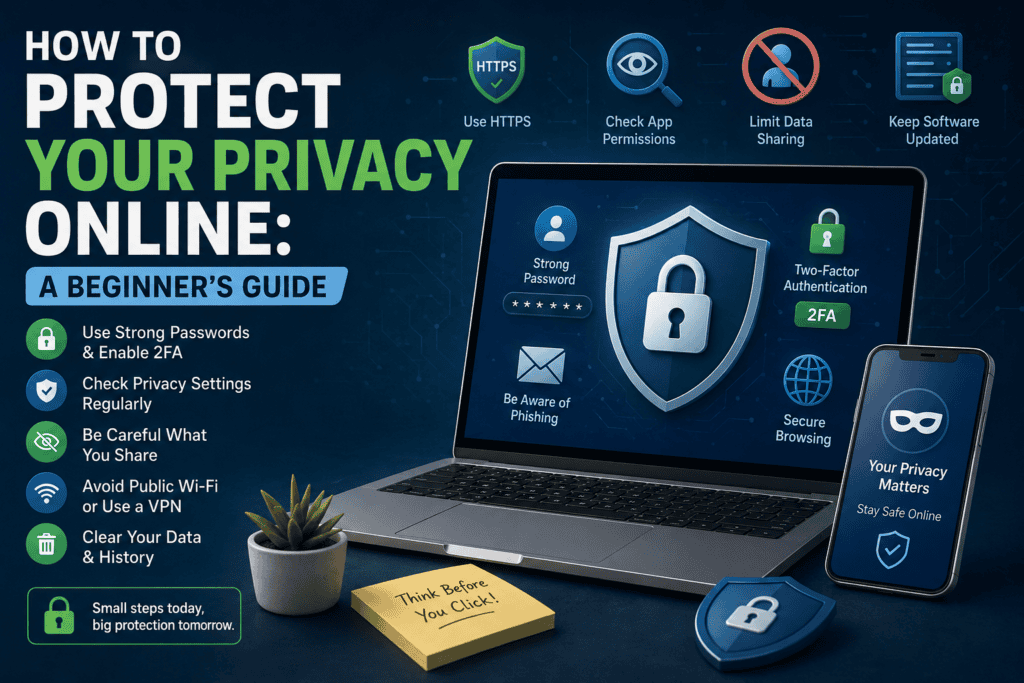

I still remember the moment I first realized my online privacy wasn’t as “private” as I thought.
It was a random evening when I searched for a pair of headphones on my phone. Nothing serious—just browsing. But within a few hours, those same headphones started showing up on Instagram ads, YouTube ads, even a random website I had never visited before.
At first, it felt convenient. Then it started feeling a little uncomfortable.
That was the beginning of my “wait… how much of my data is actually out there?” phase.
And honestly, that’s usually how most people start caring about online privacy—not from paranoia, but from a small moment that feels a bit too personal.
The uncomfortable truth: you’re being tracked more than you think
Most apps and websites don’t just “use” the internet. They actively collect signals about you.
Not in a dramatic movie-hacker way, but in a quiet background-data way:
- What you search
- What you click
- How long you stay on a page
- What device you use
- Your approximate location
- Even how you scroll
I used to think clearing my browser history was enough. It’s not even close.
History is just what you see. The real data often lives elsewhere—in app permissions, ad trackers, and account logs.
Once I understood that, I started changing small habits that actually made a difference.
Step 1: Lock down your Google and social media accounts first
This is where most of your digital footprint actually sits.
Google account (this one is huge)
If you use Android or Chrome, Google probably knows more than most apps combined.
Go to:
- Google Account → Data & Privacy
Then check:
- Web & App Activity
- Location History
- YouTube History
I personally found my YouTube history going back years—even videos I forgot I watched at 2 AM.
You can:
- Turn off tracking
- Auto-delete old data (3–18 months is a good balance)
It feels small, but it reduces long-term profiling a lot.
Social media apps
Instagram, Facebook, TikTok—they all track engagement heavily.
Simple adjustments that helped me:
- Turn off ad personalization (where possible)
- Limit location access to “While using app”
- Review connected apps and remove unknown ones
Most people never check these once after installing the app.
Step 2: Fix your browser (this is where most leaks happen)
Your browser is basically your “front door” to the internet.
I used to use Chrome with default settings. Then I switched a few things:
Practical changes that actually matter:
- Use incognito mode only when needed (it doesn’t make you invisible)
- Disable third-party cookies
- Turn on “Do Not Track” (not perfect, but helpful)
- Clear cookies regularly
Even better option:
I started using privacy-focused browsers like:
- Brave
- Firefox (with privacy extensions)
Brave, especially, reduced a lot of background tracking for me without extra setup.
Step 3: Be careful with app permissions (this is underrated)
When I checked my phone settings, I found something surprising:
A flashlight app had access to my location.
That was my wake-up moment.
Now I regularly check:
Android/iPhone permissions:
- Location
- Microphone
- Camera
- Contacts
Ask yourself:
“Does this app really need this?”
Examples:
- A calculator app does NOT need contacts
- A notes app rarely needs location
- A game does NOT need your microphone
Revoke anything unnecessary. You can always re-enable later if something breaks.
Step 4: Stop oversharing without realizing it
This one is more behavioral than technical.
I used to casually share:
- Travel plans
- Location check-ins
- Personal routines
- Even small daily habits
It doesn’t feel risky in the moment, but it builds a digital profile of your life.
Now I follow a simple rule:
If it doesn’t need to be public right now, it doesn’t go online right now.
Even small changes help:
- Delay posting photos until after you leave a location
- Avoid tagging exact places in real time
- Be careful with “fun quizzes” and online forms (they often collect data)
Step 5: Use strong passwords + a password manager
I used to reuse passwords. Most people still do.
That’s one of the easiest ways accounts get compromised.
Now I use:
- A password manager (like Bitwarden or 1Password)
- Unique passwords for every account
A strong password doesn’t need to be complicated in your mind—just long and random. The manager handles the rest.
Also:
- Enable 2-factor authentication everywhere possible
Yes, it adds one extra step—but it blocks most unauthorized logins instantly.
Step 6: Watch out for free Wi-Fi traps
This is something I learned the hard way in a café.
Public Wi-Fi networks are convenient—but not always safe.
Risks include:
- Data interception
- Fake hotspot networks
- Unencrypted browsing
If you must use public Wi-Fi:
- Avoid logging into banking apps
- Don’t enter sensitive passwords
- Use a VPN if possible
A VPN doesn’t make you invisible, but it does encrypt your traffic, which adds a solid layer of protection.
Step 7: Learn to recognize phishing attempts
This is still one of the most common privacy attacks.
I once received an email that looked exactly like my bank:
- Same logo
- Same design
- Urgent message: “Account locked, click here”
The only clue? The email address was slightly off.
Red flags to watch:
- Urgency (“act now”, “your account will be deleted”)
- Suspicious links
- Unexpected attachments
- Poor grammar (not always, but sometimes)
When in doubt:
Don’t click. Go directly to the official website instead.
Common mistakes beginners make
I made most of these at some point:
1. Thinking “I have nothing to hide”
Privacy isn’t about hiding things—it’s about control over your information.
2. Installing too many random apps
Every app adds another data point about you.
3. Ignoring app updates
Updates often include security fixes people skip.
4. Using the same password everywhere
One breach can unlock everything.
5. Trusting every website with personal info
Not every form needs your real details.
A simple privacy setup that actually works
If you want a beginner-friendly setup without overcomplicating things:
On your phone:
- Review permissions monthly
- Turn off unnecessary location tracking
- Remove unused apps
On your browser:
- Use privacy-focused browser (Brave/Firefox)
- Clear cookies regularly
- Block third-party trackers
On accounts:
- Enable 2FA
- Use password manager
- Turn off ad personalization
That’s it. You don’t need extreme steps to see a real improvement.
Final thoughts
Protecting your privacy online doesn’t mean disappearing from the internet. That’s unrealistic.
It’s more about being intentional.
Once I started adjusting small settings instead of ignoring them, I noticed something interesting: fewer targeted ads, fewer random recommendations, and a bit more control over what I actually wanted to see.
You don’t have to become a “privacy expert” overnight.
Even 20–30 minutes of setup can change how your digital footprint looks long-term.
And the earlier you start, the easier it gets to stay in control instead of trying to fix everything later.
References (useful starting points)
- Electronic Frontier Foundation (Privacy guides): https://www.eff.org/issues/privacy
- Mozilla Privacy & Security Tips: https://www.mozilla.org/en-US/privacy/
- Google Account Data Controls: https://myaccount.google.com/
- FTC Online Privacy Guidance: https://consumer.ftc.gov/articles/how-protect-your-privacy-online
- Bitwarden Password Manager: https://bitwarden.com/