
If you had told me a couple of years ago that I’d be sitting at my desk editing cinema-grade video clips using nothing but plain English text, I would have laughed. Back then, “AI video” meant distorted faces, chaotic physics loops, and backgrounds that melted into soup after three seconds.
But 2026 has completely upended the playbook. The technology has matured at a staggering pace, and we are seeing a massive shift in how video tools are built and accessed.
Case in point: you’ve probably heard of OpenAI’s pioneering Sora and Google’s high-fidelity Veo. But here is the real-world twist that caught many creators off guard this year—OpenAI actually began sunsetting standalone consumer access to Sora web and app interfaces. Meanwhile, Google has doubled down, making its advanced Veo 3.1 engine highly accessible across platforms like Google Vids and specialized creator suites.
If you are a complete beginner trying to figure out how to navigate this fast-moving landscape without wasting thirty hours on bad renders or draining your wallet on unnecessary subscriptions, you are in the right place. Let’s break down exactly how these cutting-edge text-to-video generators work, how to prompt them for pristine results, and how to avoid the most common beginner traps.
The 2026 Core Mechanics: Text-to-Video vs. Image-to-Video
When you open a modern video generator like Veo 3.1, you generally have two main starting lines. Understanding when to use which will save you a massive amount of generation credits.
[ Natural Language Prompt ] ──────► TEXT-TO-VIDEO ──────► 8-15 Sec Dynamic Clip
                                                              ▲
[ Keyframe Image + Prompt ] ─────► IMAGE-TO-VIDEO ────────────┘
Text-to-Video (T2V)
You type a descriptive paragraph entirely from scratch, and the AI generates both the subjects and the motion from thin air. It is fantastic for broad concept brainstorming, abstract visual effects, and wide environmental establishing shots.
Image-to-Video (I2V)
You upload a static image first (perhaps a high-res graphic you generated in Midjourney or FLUX) and then add a short prompt describing how that image should move.
The Professional Shortcut: If you want absolute structural control, always start with Image-to-Video. Video engines are brilliant at calculating motion physics, but they can struggle to build highly specific characters or exact room layouts purely from text. Creating the perfect starting frame first guarantees your scene looks exactly how you intended.
Step-by-Step: Prompting an AI Video Engine for Beginners
One of the biggest mistakes I made when I started generating video was typing short, ambiguous prompts like “a fast sports car driving down a highway.” The model would inevitably give me a boring, flat, handheld camera look with weird lighting artifacts.
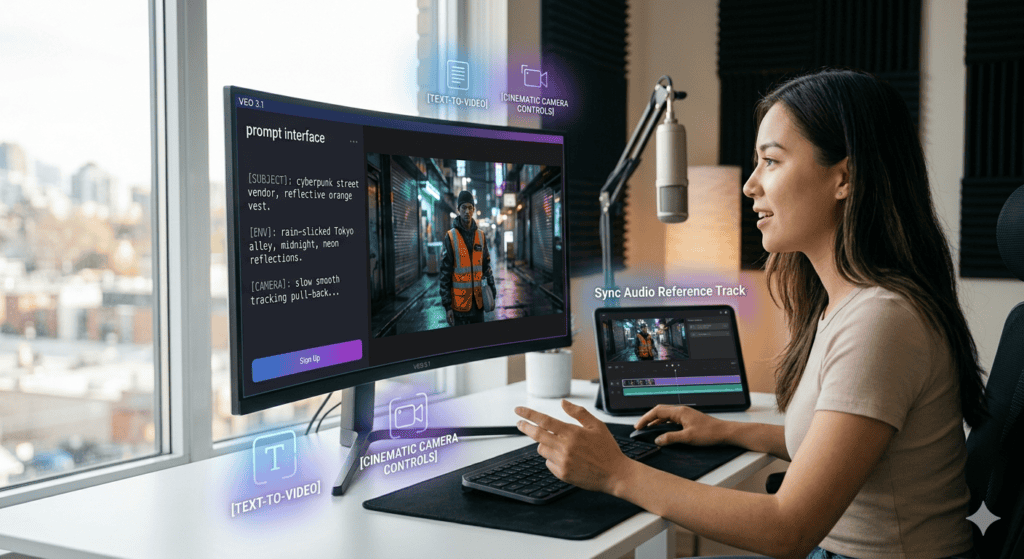
Modern cinematic video models like Veo 3.1 require an architectural approach to prompting. You need to feed the engine specific structural layers. Here is the exact script blueprint I use for every single generation.
Putting It All Together:
Instead of a vague sentence, your combined prompt looks like this:
“A slow, smooth tracking shot pulling backward at eye-level, showing a rugged cyberpunk street vendor wearing a reflective neon-orange vest. He is standing behind a steaming noodle cart in a rain-slicked Tokyo alleyway at midnight, vibrant purple neon signs reflecting off wet asphalt, as the vendor hands a steaming bowl toward the camera, thick white vapor rising realistically.”
By explicitly defining the camera physics and environmental interactions, you give the model the mathematical boundaries it needs to calculate consistent reflections and realistic smoke simulation.
Crucial Lessons Learned (And Traps to Avoid)
Getting clean results out of video generation tools requires a completely different mindset than generating static images. Here are the hard lessons I learned after burning through hundreds of production rendering tasks.
1. The Glitch Threshold (Keep Clips Focused and Short)
It is incredibly tempting to try and generate a massive 30-second narrative sequence in a single shot. Don’t do it. The longer an AI video engine runs continuously, the more its structural memory decays. By second 10, characters might start sprouting extra limbs, or walls might subtly morph into windows.
- The Fix: Think like a film director. Professional movies are composed of short, intentional cuts lasting 3 to 6 seconds each. Generate short, high-fidelity clips, and stitch them together later inside a standard, traditional video editor.
2. The Direct Text Illusion
If you prompt a video engine to show a character holding a book that reads “Tech Blog 2026,” the letters will often blur or shift dynamically as the camera moves through space. While modern engines are improving, text rendering across moving video frames remains notoriously difficult to pin down perfectly.
- The Fix: Keep text entirely out of your generation prompt. Generate clean, distraction-free visual footage, and overlay your text, logos, or captions cleanly during post-processing.
3. Ignoring Sound Sync and Pacing
A beautifully generated video clip can still feel strangely detached and dead if it lacks an acoustic atmosphere. Beginners often just drop a generic music track over their footage and call it a day.
- The Fix: Advanced engines like Google Veo 3.1 allow you to input an audio track or voiceover reference during the visual generation phase. The AI reads the underlying audio rhythm and syncs camera transitions or subtle environmental movements directly to the beat, creating a profoundly cohesive viewer experience.
Final Thoughts: The Creative Pipeline Shift
The true power of AI video generation in 2026 isn’t about replacing human editors or clicking a single button to magically output a finished feature film. It is about eliminating the massive bottleneck of traditional production logistics.
If you need a highly specific B-roll sequence for a client project, an explanatory video thumbnail, or a unique visual transition for social media content, you no longer have to spend hours hunting through generic, overused stock footage libraries or renting out expensive camera rigs for a minor shot. You have a fully responsive digital studio built right into your browser.
Start small this week. Open a accessible engine tier, upload a clean portrait or landscape image you love, and experiment with simple camera directives like “slow drone pull-back” or “cinematic pan-left.” Learn exactly how the model responds to your directions, embrace the occasional abstract glitch as a creative stepping stone, and start building your own custom digital narratives.
References & Technical Context
- Platform Lifecycle Shifts: Official developer updates confirm strategic re-allocations in model infrastructure, including the scheduled discontinuation of standalone Sora consumer surfaces in favor of highly specialized enterprise framework integrations.
- Engine Benchmarks: Detailed technical documentation across contemporary generative video stacks highlights Veo 3.1 systems as a leading operational route for multi-modal audio alignment and multi-angle cinematic scaling.